

Installation
Step 1: Uploading the Application
To begin, locate the EXP.zip file on your computer. This file will need to be uploaded to Microsoft Teams.
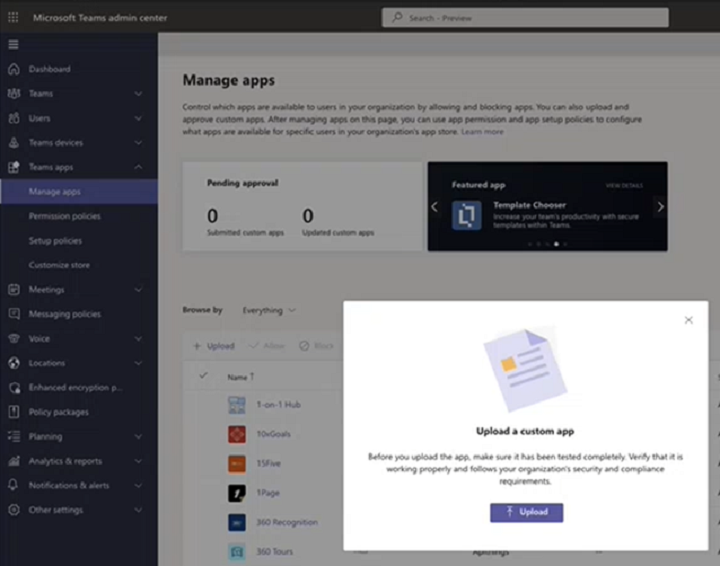
- Navigate to the Microsoft Teams admin center.
- Navigate to
Teams apps → Manage apps. - Press the
+ Uploadbutton. - Upload the application
.zipfile from your computer.
Step 2: Launching the Application
After the application is uploaded, proceed by launching the application please.
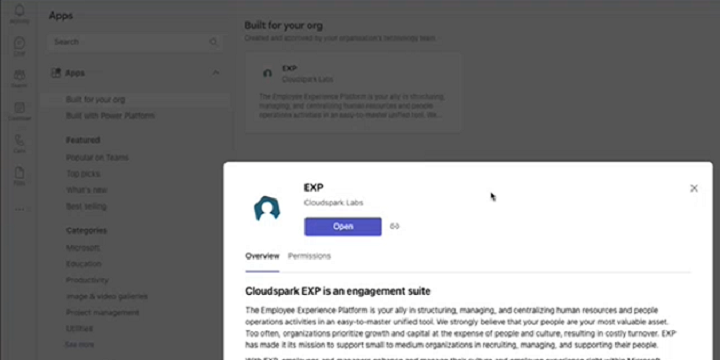
- Return to Microsoft Teams and click on the ellipsis
(…)symbol on the left sidebar. - Navigate to
More apps → Built for your org. - Click on the EXP application.
- Open the EXP application.
Step 3: Authentication & Authorization
Before you are able to use the EXP application, you will need to complete the authentication and authorization process.
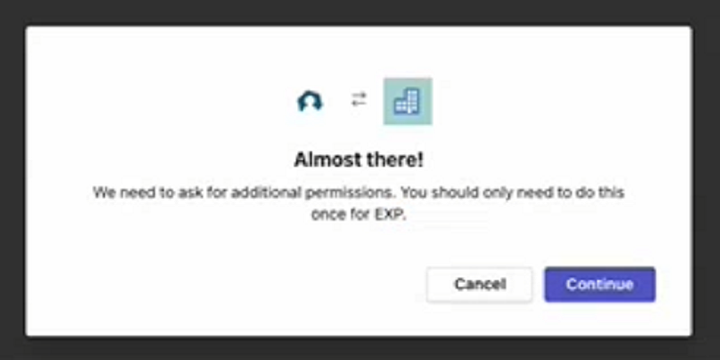
- Upon launching the application, you will be prompted with a request for additional permissions. Select
Continue.
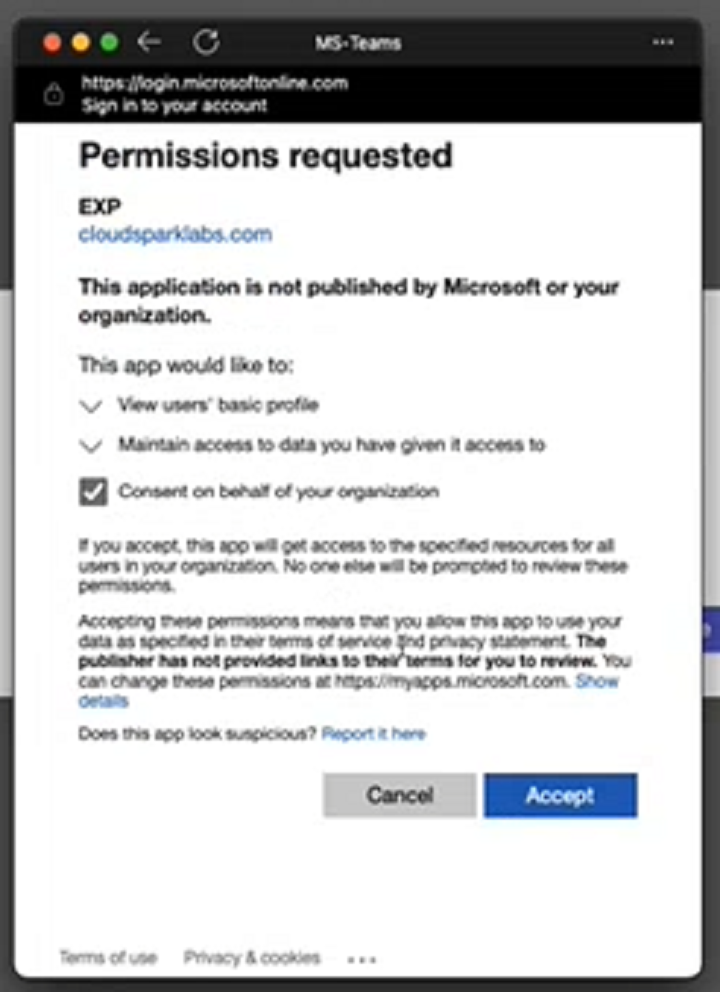
- Accept both pop-ups and wait for the app to process information.
The EXP App will then begin loading.