

Licensing
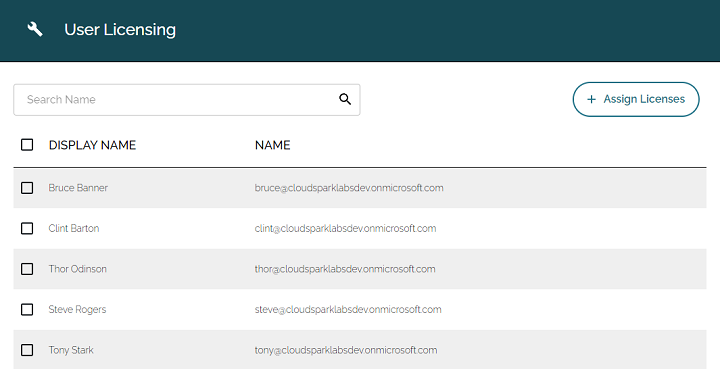
To start, press the ≡ button on the top right. From there, click on the Licensing button. This will bring you to the EXP Licensing page.
How to Assign a License
- Press the
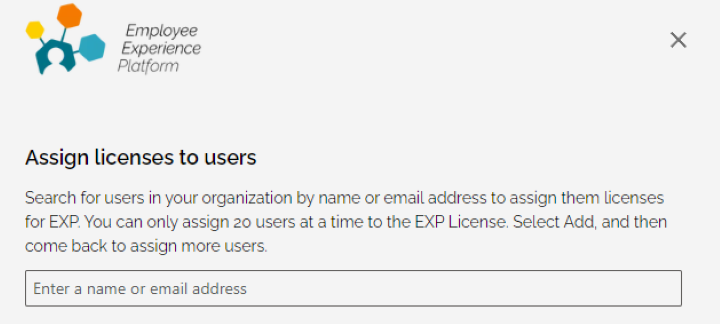
+ Assign Licensesbutton on the top right of the page. - This will open a side menu. Under
Assign licenses to users, enter the name or email address of the user you wish to assign a license to. - If the user pops up, click on the user. Otherwise, manually enter the full email address and press
Enteron your keyboard. - When done, press the
Assign Licensesbutton on the bottom of the menu.
How to Remove a License
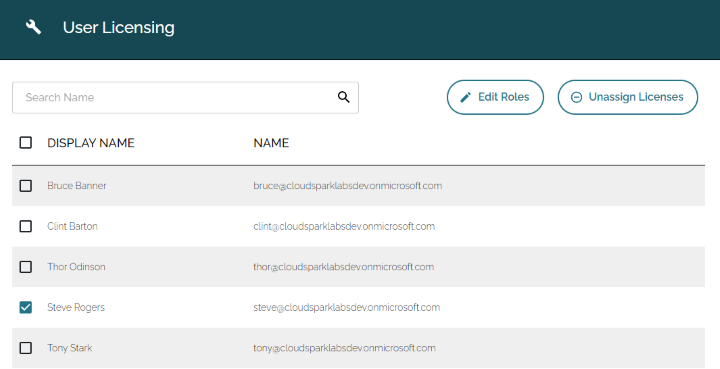
- Select the check box
☑next to the user whose license you wish to remove. - Press the
⊖ Unassign Licensesbutton. - The user's license is now revoked.
How to Assign Access
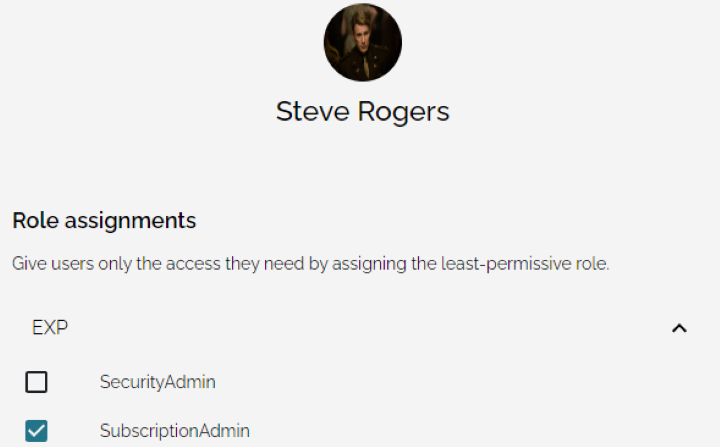
- Select the check box
☑next to the user you would like to assign access to. - Press the
✐ Edit Rolesbutton. This will open up a new menu. - From here, you can assign different roles to the user for each EXP application.
- When done, press
Save Changes.
Access Roles - What do They Mean?
| Role | Description |
|---|---|
| Admin | Placeholder text |
| Basic | Placeholder text Placeholder text Placeholder text Placeholder text Placeholder text Placeholder text |
| Manager | Placeholder text |
| Security Admin | Placeholder text |
| Subscription Admin | Placeholder text |